Hinto AI
4347 lines. Hinto AI came to play.
Hinto AI is revolutionizing the AI landscape with its user-friendly platform that allows seamless account creation and login via Google. This streamlined approach ensures security and convenience, making it easier for users to tap into the power of AI without the hassle of managing multiple passwords.
Not sure yours is this good? Check it →
Hinto AI's llms.txt Insights
Overachiever
309 sections. Most sites can barely manage 3. This one went all in.
War and Peace vibes
4347 lines. They really wanted AI to understand them.
Double trouble
Runs both llms.txt and llms-full.txt. Someone takes this seriously.
What's inside Hinto AI's llms.txt
Hinto AI's llms.txt contains 17 sections:
- Hinto AI
- Getting Started with Hinto AI
- Sign up and log in with Google
- Sign up and log in with Google
- Signing Up with Google
- Logging In with Google
- Important Considerations
- Summary
- Related
- Complete the onboarding setup
- Complete the onboarding setup
- Step 1: Welcome to Hinto AI
- Step 2: Create Your First Project
- Step 3: How Hinto AI Works
- Step 4: Upload Your First Video
- Tips for Using This Section
- Summary
How does Hinto AI's llms.txt compare?
| Hinto AI | Directory Avg | Top Performer | |
|---|---|---|---|
| Lines | 4,347 | 1009 | 163,447 |
| Sections | 309 | 16 | 3207 |
Cool table. Now the real question — where do you land? Find out →
Hinto AI's llms.txt preview
First 100 of 4,347 lines
# Hinto AI
---
## Getting Started with Hinto AI
### Sign up and log in with Google
<!-- Article URL: /docs/getting-started-with-hinto-ai/sign-up-and-log-in-with-google -->
# Sign up and log in with Google
Hinto AI allows you to create an account and sign in using your existing Google account for a faster and more secure experience. This option is available on the main sign-up and sign-in pages, streamlining your access to the platform without needing to manage a separate password.
## Signing Up with Google
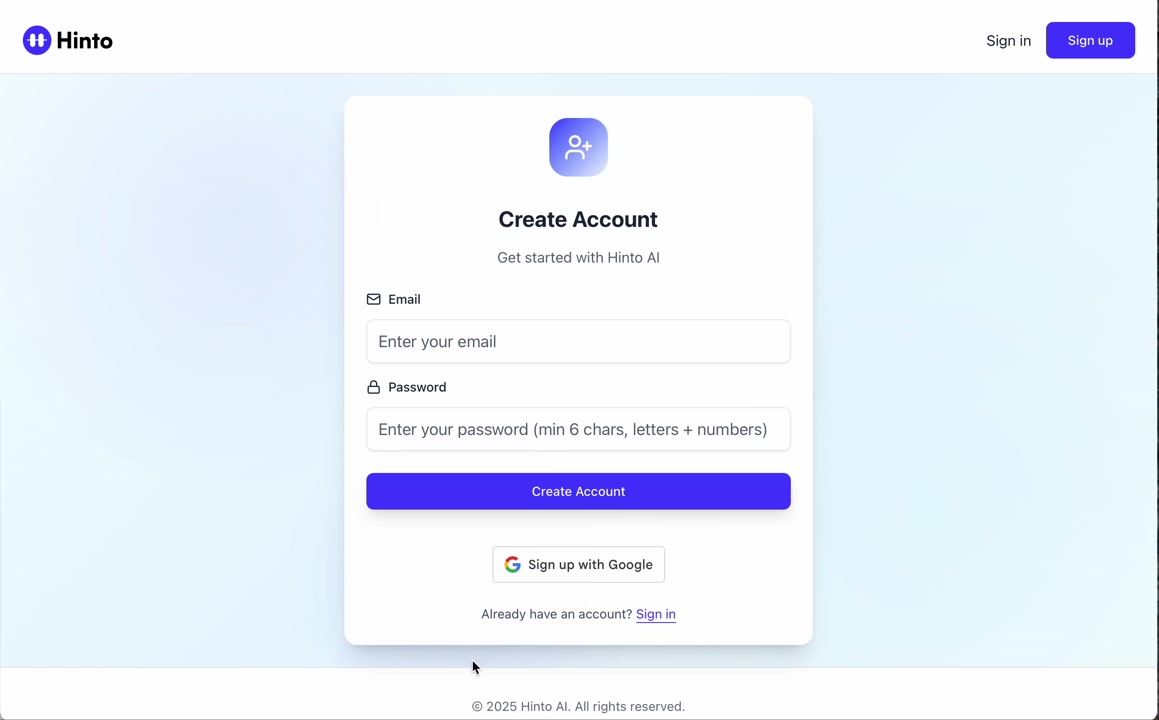
If you are creating a new Hinto AI account, you can use your Google credentials to get started quickly. On the **Create Account** page, you will find the option to sign up with Google.
1. Navigate to the Hinto AI sign-up page.
2. Instead of filling out the email and password fields, click the **Sign up with Google** button.
3. A new window will open, prompting you to choose a Google account. Select the account you wish to use.
4. After selecting your account, you will be automatically authenticated and redirected to your Hinto AI projects dashboard.
## Logging In with Google
Once you have created an account using Google, you can use the same method to log in for subsequent sessions. The process is similar to signing up.
1. On the Hinto AI sign-in page, click the **Sign in with Google** button.
2. If you are already logged into your Google account in your browser, you may be logged into Hinto AI automatically.
3. If not, select your Google account from the list that appears. You will then be redirected to your dashboard.
### Important Considerations
- **One Account, One Method:** If you sign up with Google, you should continue to log in with Google. An account created via Google OAuth is separate from an account created with the same email address and a password.
- **Security:** Using Google for authentication leverages Google's security features, such as two-factor authentication (2FA), for your Hinto AI account.
## Summary
This article explains how to use your Google account to both create and access your Hinto AI profile. By using the 'Sign up with Google' feature, you can bypass manual password creation for a streamlined and secure authentication process, getting you to your projects dashboard in just a few clicks.
## Related
- [Create your Hinto AI account](/docs/getting-started-with-hinto-ai/create-your-hinto-ai-account)
- [Log in into your Hinto AI account](/docs/getting-started-with-hinto-ai/log-in-into-your-hinto-ai-account)
- [Create your first project](/docs/getting-started-with-hinto-ai/create-your-first-project)
---
### Complete the onboarding setup
<!-- Article URL: /docs/getting-started-with-hinto-ai/complete-the-onboarding-setup -->
# Complete the onboarding setup
After creating your Hinto AI account, you will be guided through a brief, multi-step onboarding process. This setup helps personalize your experience, create your first project, and prepares you to generate your first knowledge base.
## Step 1: Welcome to Hinto AI
The first step helps us understand your needs better. You'll be asked to provide some basic information about yourself and your company. You must make a selection for each required field to proceed.
- **How did you hear about Hinto AI?:** Select the source from the options provided.
- **Company size:** Choose the option that best represents the number of employees in your company.
- **What's your role?:** Select your current role from the list.
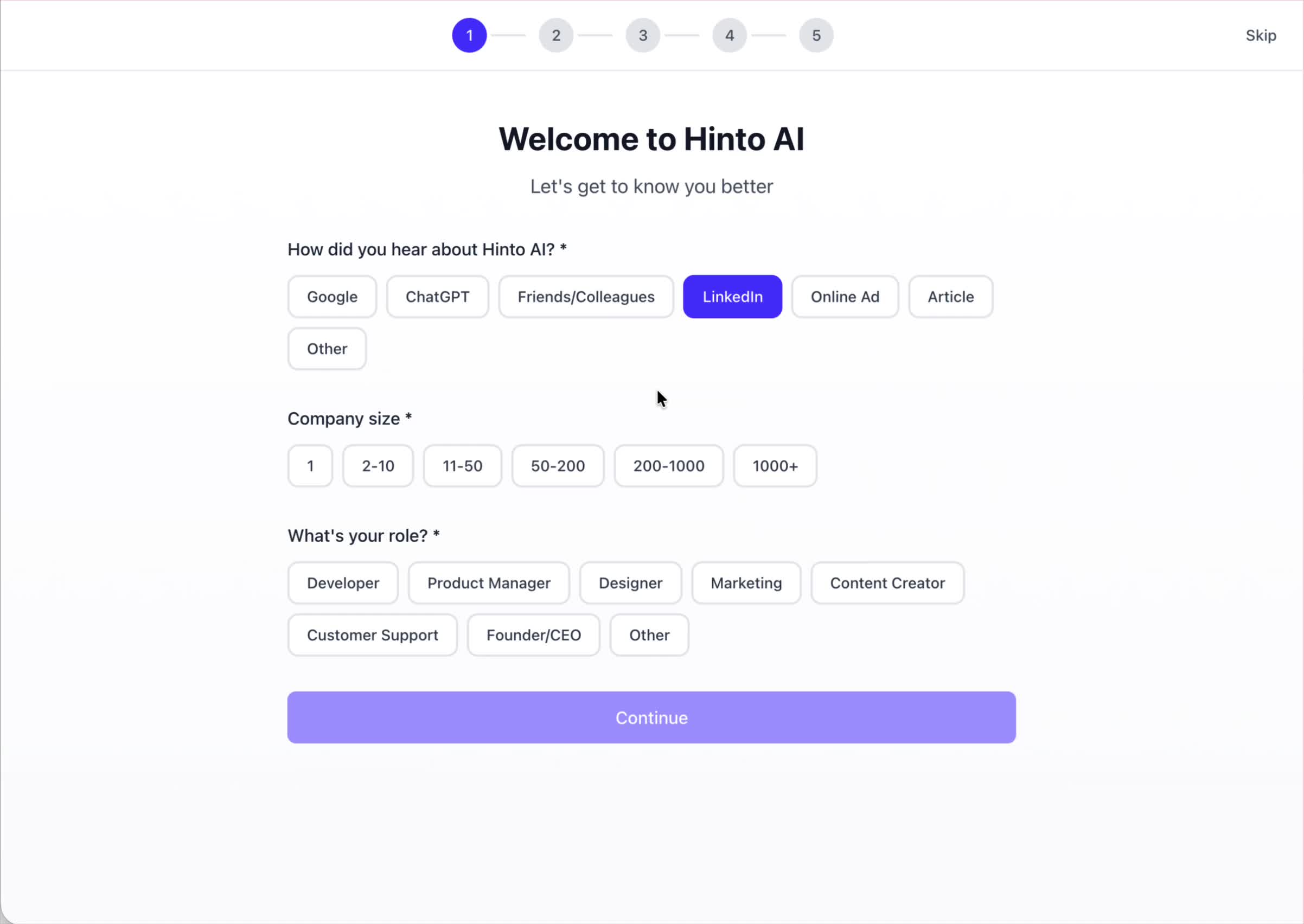
Once you have filled out all the fields, click the **Continue** button.
## Step 2: Create Your First Project
Next, you will set up your first project. This project will house the documentation you generate.
- **Project Name:** Enter a descriptive name for your project.
- **Language:** Select the primary language for the content that will be generated.
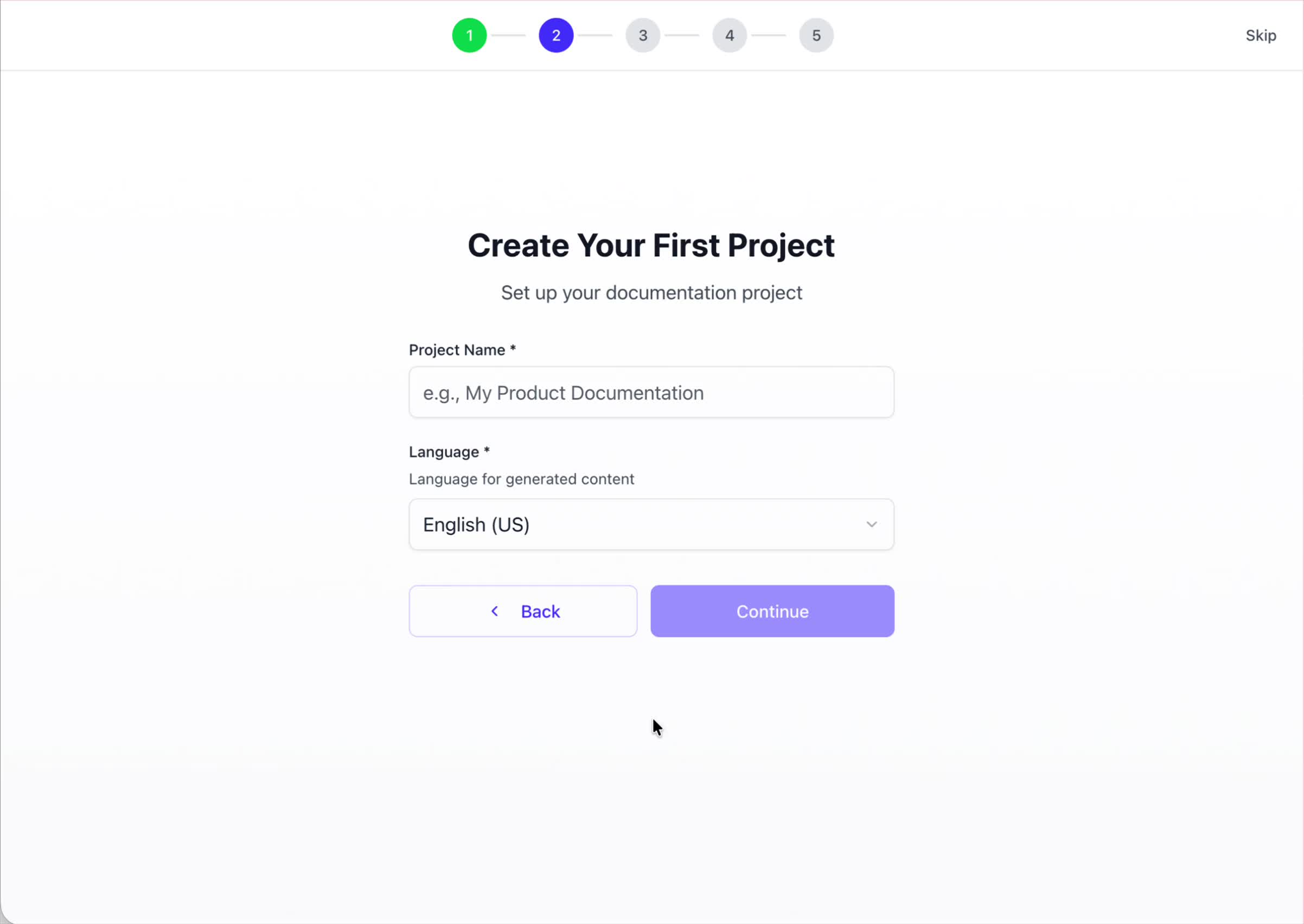
Click **Continue** to move to the next step.
## Step 3: How Hinto AI Works
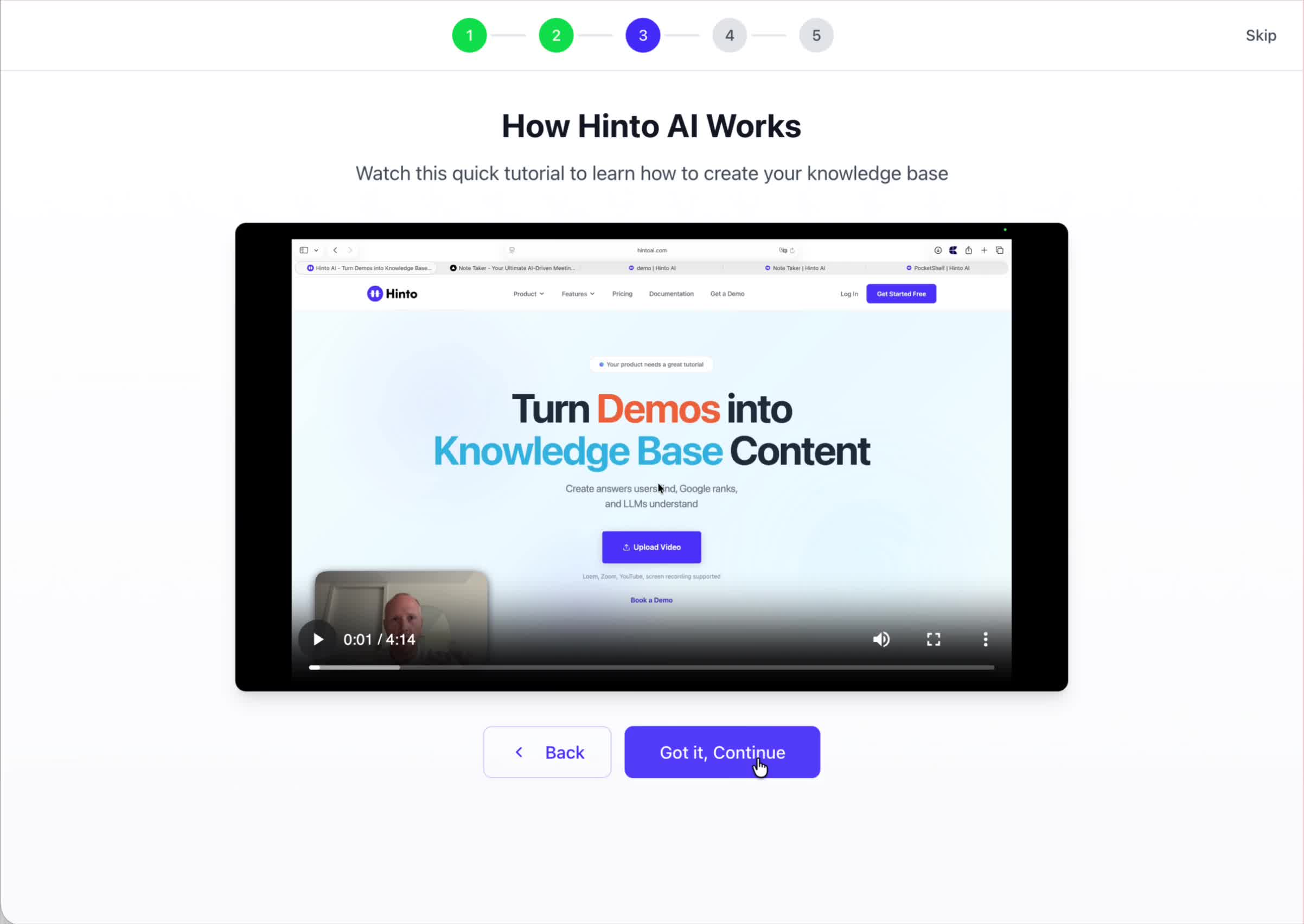
A brief tutorial video will appear, providing a quick overview of how Hinto AI transforms your demos into a knowledge base. Watching this video is a great way to get acquainted with the platform's core functionality. When you are finished, click **Got it, Continue**.
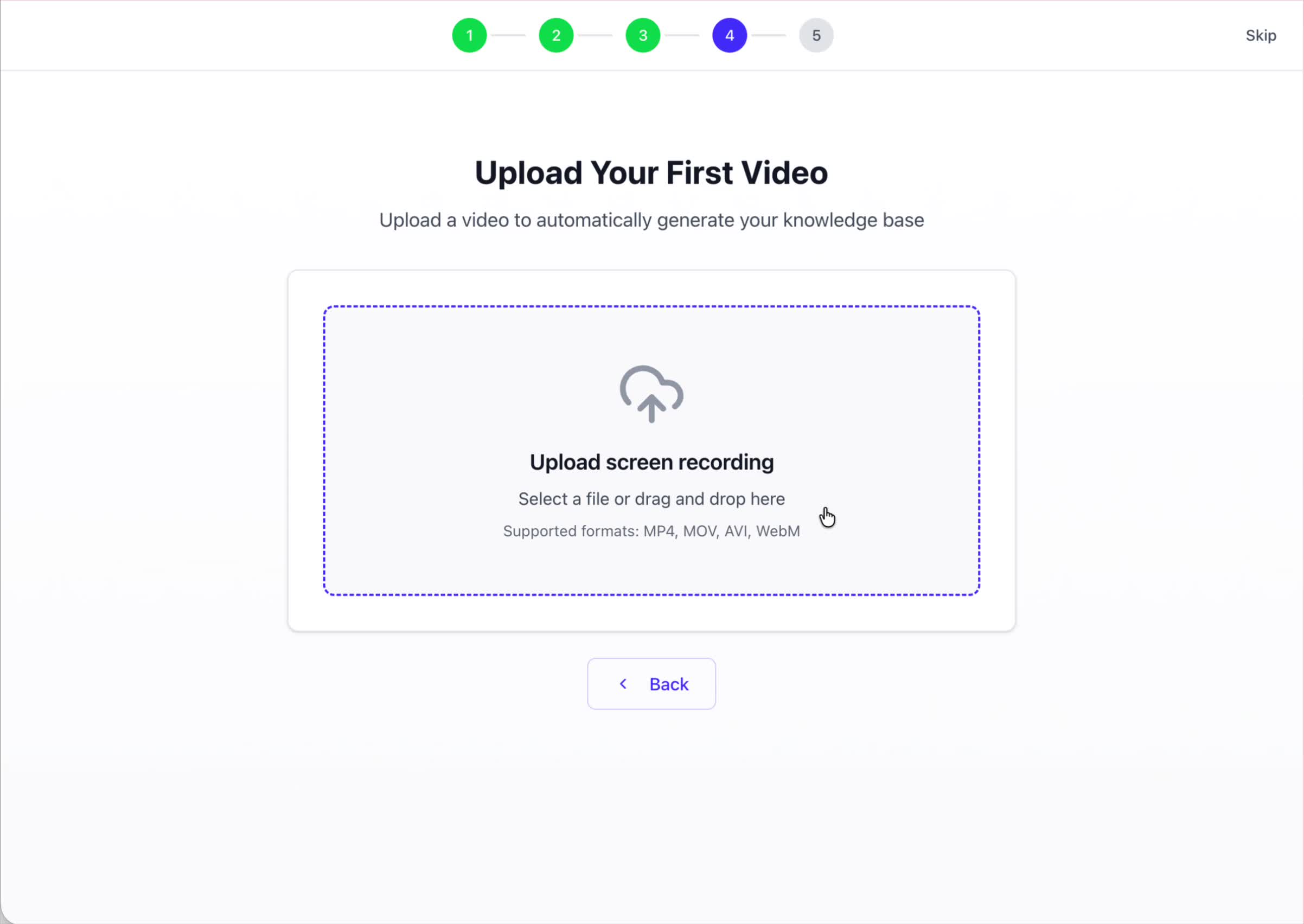
## Step 4: Upload Your First Video
The final step is to upload your first screen recording. You can either drag and drop a file or click to select one from your computer. Hinto AI will use this video to automatically generate your knowledge base content. Supported formats include MP4, MOV, AVI, and WebM.
### Tips for Using This Section
If you prefer to explore the dashboard immediately, you can click the **Skip** button located in the top-right corner of the screen at any point during the onboarding process. This will take you directly to your project space.
## Summary
This article provides a step-by-step guide to the Hinto AI onboarding flow. Following these steps allows you to personalize your account, create your first project, and upload a video to start generating content immediately after signing up.What is llms.txt?
llms.txt is an open standard that helps AI language models understand your website. By placing a structured markdown file at /llms.txt, websites provide AI search engines like ChatGPT, Claude, and Perplexity with a clear map of their content, services, and documentation. Companies like Hinto AI use it to ensure AI accurately represents their brand when answering user queries. Read the spec.
Hinto AI showed up. Where's yours?
1000+ companies didn't overthink it. 60 seconds. Go.
Check your site →